FX—USB

USB audio
for EP—2350 FX mic
User
guide
Ver 0.3Unofficial

Effect: ECHO · Sample: CLAPS · Handle: held

FX–USB turns your FX MIC into a microphone for your Mac. Plug it in with a USB-C cable, open the app, and choose FX–USB in Zoom, Meet or any app you talk into.

All the mic's effects come through. The app shows the mic's lights, lets you switch effects from your Mac, records with one click, and lets you hear yourself on your speakers.

Download for Mac Free · Macs with an Apple chip · how to install
1

Your mic, with FX–USB

Everything on the mic still works the way it always has. This is what each part does while it is plugged into your Mac.

  • Hold to talkPush the orange handle in. The mic only sends sound while you hold it.
  • Effect lightThe red light shows which effect is on. No light means clean.
  • Next effectThe orange button. Clean, echo, spring, pixie, robot.
  • Next sampleThe middle button picks the horn, claps, bell or the fourth one.
  • Sample lightThe white light shows which sample is picked.
  • Play sampleThe bottom button plays it.
  • USB-C to MacThe port is under the lower lid.
2

See it work

Demo · sound on
What happens

The mic is plugged into a Mac with a USB-C cable and Photo Booth is recording.

Each press of the mic's orange button changes the effect. The FX–USB panel in the menu bar shows the new effect straight away.

Photo Booth needs no setup. It records from FX–USB because the app makes it the Mac's microphone while it is open.
3

Setting up

About two minutes, once. After that, plug in the mic and talk.

Plug in
Lift the lower lid and connect a USB-C cable to the port inside. Use a cable that can transfer data, like your phone's. Some cheap cables only charge. The cable powers the mic, so no batteries needed.
Open FX–USB
Install it once with FX-USB.pkg (see chapter 8), then open FX–USB from Applications. It finds the mic by itself and says LIVE.
Pick FX–USB
In Zoom: Settings → Audio → Microphone. In Meet: Settings → Audio. Voice Memos, Photo Booth and most other apps use it on their own.
Hold and talk
Push the handle in and talk. Let go and the mic goes quiet, like a walkie-talkie.
4

The app

A window that shows your mic as it is right now, and the same controls in the menu bar at the top of your screen.

On your Mac
FX–USB File Edit Window Fri 2 Oct 23:41
The window. Open it from the Dock. It shows your mic with its lights, the effect and sample by name, and big buttons to record, mute and hear yourself.
The menu bar. Click the dotted M at the top of your screen. The same controls drop down, so you can change things mid-call.
5

Buttons on your Mac

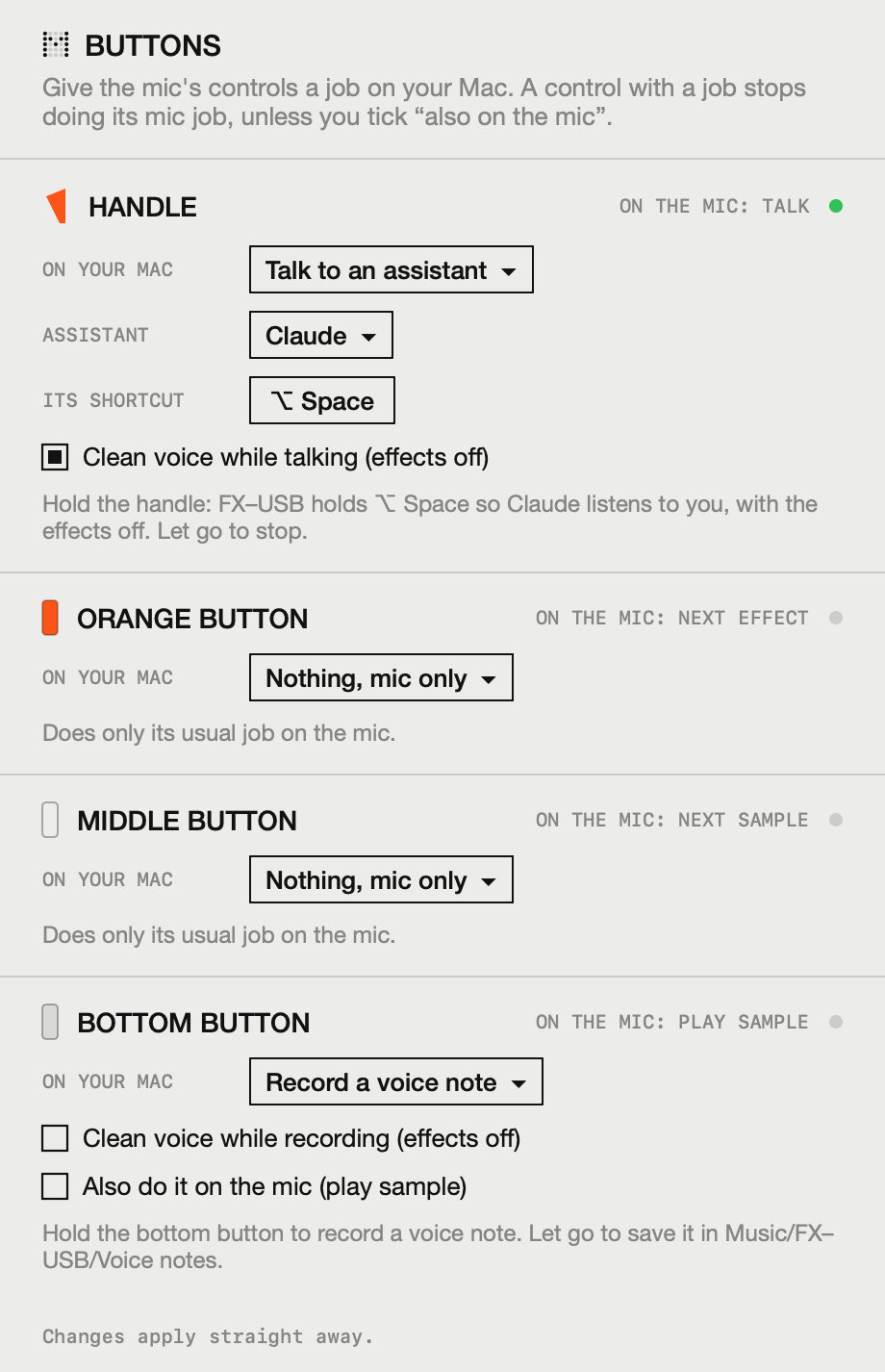
Give the mic's handle and buttons a job on your Mac: talk to an assistant, record a voice note, press a shortcut. In the app, click SET UP next to BUTTONS.

The buttons window
FX–USB Buttons window: the handle is set to talk to Claude with the option shortcut, with clean voice on; the bottom button records a voice note
Pick a job for each control from the list. A green light shows when you press it, and the grey line under each one says exactly what will happen.
Talk to an assistant

Hold the handle and FX–USB holds your assistant's talk shortcut, so ChatGPT, Claude, Siri or Dictation listens. Let go and it stops.

The effects switch off while you talk, so the assistant hears your clean voice and understands you better. You can turn that off.

Use the push-to-talk or dictation shortcut from your assistant's settings, then record the same keys in FX–USB.
Voice notes

Hold a button to record, let go to save. Notes go to Music/FX–USB/Voice notes.

Shortcuts

Press any keyboard shortcut, or run a Shortcut from the Shortcuts app.

Good to know

A button with a Mac job stops doing its mic job, unless you tick "also on the mic". The handle always lets your voice through.

Pressing keys for other apps needs a one-time permission: System Settings → Privacy & Security → Accessibility → FX–USB.

6

What you can do

Effects
4!
Echo, spring, pixie and robot work in calls and recordings. Switch on the mic, or click its buttons in the app.
Lights
See what the mic is doing. The app shows its lights, buttons and handle as they move.
Speakers
Hear yourself on your Mac or headphones. Built-in protection stops the howl you get when a mic hears its own speaker.
Record
One click records. Recordings go to your Music folder.
Samples
4!
Horn, claps, bell and one more. They come through too, so the horn can go off in a meeting.
Sound
0!
Gaps or crackles. The sound stays smooth on long calls, even while the mic plays effects.
Your mic
0!
Changes to it. Nothing is installed on the mic. Unplug it and it is exactly as before.
Price
0€
FX–USB is free.
7

Only have the headphone plug?

The cable that comes out of the FX MIC ends in a headphone-style plug. It sends sound out, like a speaker cable. FX–USB uses the USB-C port instead, so you don't need it. If you'd rather use the plug, here is what works.

Won't work
Straight into the Mac's headphone socket. The Mac thinks you plugged in headphones and doesn't listen. A plain USB-C headphone adapter has the same problem.
Easiest
A USB-C sound adapter with a microphone socket. Pick one with two sockets. Plug the mic into the microphone one, then choose "USB Audio Device" as your microphone.
Best sound
A USB audio interface. The small boxes musicians use. Plug the mic into a "line in" socket, which handles its loud signal without distorting.
Turn
If it sounds distorted, it's too loud. Lift the lower lid and turn the small round volume dial down a little.

Questions. Read these first.

What do I need?

An FX MIC, a Mac with an Apple chip (M1 or newer) running macOS 13 or later, and a USB-C cable that can transfer data.

I can't hear myself in my call.

Check three things. The FX–USB app is open and says LIVE. You chose FX–USB as the microphone in your call app. You're holding the handle in.

Is it made by teenage engineering?

No. FX–USB is a free, independent app. Teenage engineering doesn't make or support it.

Can it harm my mic?

No. While the app runs, it borrows a little of the mic's memory. Nothing is saved on the mic, and unplugging it puts everything back.

Why do I have to hold the handle?

That's how the mic works. It only sends sound while the handle is pushed in, just like when it's plugged into a speaker.

The app says my mic needs an update.

The mic has its own software, called firmware. FX–USB works with versions 1.1.1 and 1.1.2. The latest version and the steps to install it are on teenage engineering's website.

Do I still need batteries?

No. The USB-C cable powers the mic while it's plugged in.

Can the handle talk to ChatGPT or Claude?

Yes. Set the handle to "Talk to an assistant" in the Buttons window (chapter 5) and record your assistant's talk shortcut.

Can others hear the effects?

Yes. The effects happen inside the mic, so everyone on the call hears exactly what a speaker would play.

8

Get FX–USB

Download FX-USB.pkg 0.5 MB · installs the app and the FX–USB microphone · all files · source code
1 · Open it

Double-click FX-USB.pkg in your Downloads folder.

macOS says it can't check the app for malicious software. That's because Apple hasn't reviewed it yet, which costs a paid developer account. Click Done.
2 · Allow it

System Settings → Privacy & Security → scroll down → Open Anyway.

Confirm with your Mac password. You only do this once.
3 · Install

Click through the installer.

It puts FX–USB in Applications and adds the FX–USB microphone. Your Mac's sound restarts for a second at the end.
4 · Plug in and talk

Open FX–USB, plug in the mic and choose FX–USB in your call app.

Hold the handle to talk.

Comfortable with Terminal? This one line downloads and installs it without the security prompt:

curl -L -o /tmp/FX-USB.pkg https://github.com/danilosierrac/fx-usb/releases/latest/download/FX-USB.pkg && sudo installer -pkg /tmp/FX-USB.pkg -target /

To remove FX–USB again:

sudo rm -rf /Applications/FX-USB.app /Library/Audio/Plug-Ins/HAL/FX-USB.driver && sudo killall -9 coreaudiod
Version0.3, test version
PriceFree
MacApple chip, macOS 13+
Mic firmware1.1.1 or 1.1.2